
Online Florist
83 products found
































Online Florist | Send Fresh Flowers to Someone You Care About Right Away
An online florist offers a practical way to express feelings quickly and effectively in the modern world. Without searching for a physical flower shop, you can place a flower order within a few minutes and send fresh flowers to someone you care about.
With professional service and a broad product selection, ButikFlorist takes the online florist experience to a high standard.
Why Choose an Online Florist?
Online florist services are especially convenient for customers who want to send flowers without losing time in a busy day. The ability to send flowers is now just a few clicks away.
With ButikFlorist, you can send fresh flowers quickly and securely to someone you care about.
Most Popular Flowers
- Red Rose Bouquets – The most powerful symbol of love
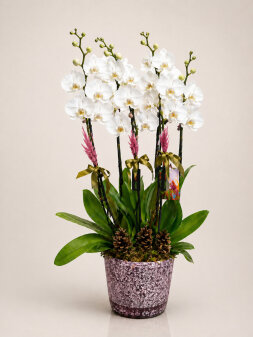
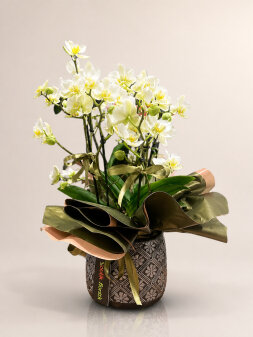
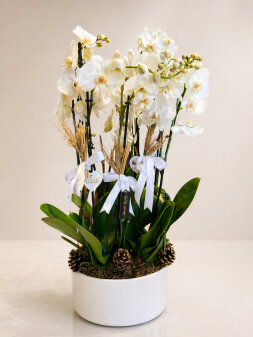
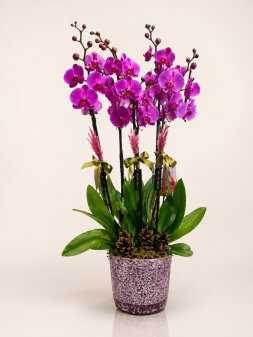
- Orchids – Elegance and sophistication
- Lilies – Purity and innocence
- Daisy Bouquets – Simplicity and sincerity
- Mixed Flower Arrangements – Colorful, bespoke designs
How Do You Order Flowers Online?
Ordering is straightforward:
- Choose the flowers you want
- Enter the address details
- Complete payment
Your order is prepared within a few minutes and sent with same-day flower delivery.
Fast, Dependable Delivery
An online florist provides fast delivery to many locations across Türkiye. Fast flower delivery offers a significant advantage, especially for urgent needs.
ButikFlorist is there when you want to surprise someone you care about.
Flower Delivery for Special Occasions
An online florist is a popular solution for special occasions such as birthdays, Valentine's Day, Mother's Day, and anniversaries.
Flowers sent on these occasions strengthen emotional bonds and create memorable moments.
Conclusion
An online florist provides a fast, modern way to express your feelings elegantly. With ButikFlorist, you can create a memorable experience for someone you care about.